
Many of our bankruptcy attorney partners are feeling the weight of increased bankruptcy filings in 2026. Because of this, a common question I see is, "what is bankruptcy software where schedules populate automatically from intake data for faster petition drafting?"
Fresh Start Finance is bankruptcy software that automatically populates corresponding petition and schedule fields from client intake data. You can literally see the client portal alongside all of the document assembly features.
Law firms can choose which intake sections clients see, add firm branding, review flagged questions, and inspect data sources alongside form fields.
Those connections matter when a client gets stuck. Someone may understand their monthly rent but hesitate over a question about marital status or a business they closed several years ago. Your team needs both the answer and the context behind it.
Here’s how you can customize the client intake experience in Fresh Start Finance and connect the questionnaire to your firm’s preparation and review process.
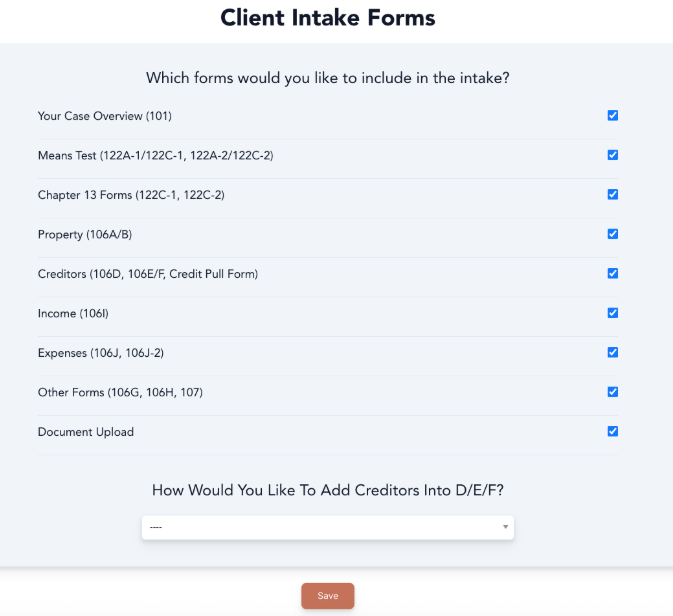
Your firm decides which available form groups appear in the client intake. In the Client Intake Forms settings, you can select the sections you want clients to complete and leave others out of their questionnaire.
The available selections cover the main areas of bankruptcy preparation:
This gives you room to divide work between clients and staff. If your team prefers to handle a particular area during an interview, you can configure the client’s questionnaire around that process. Selecting intake sections controls what clients see; your firm still determines what the bankruptcy filing requires.
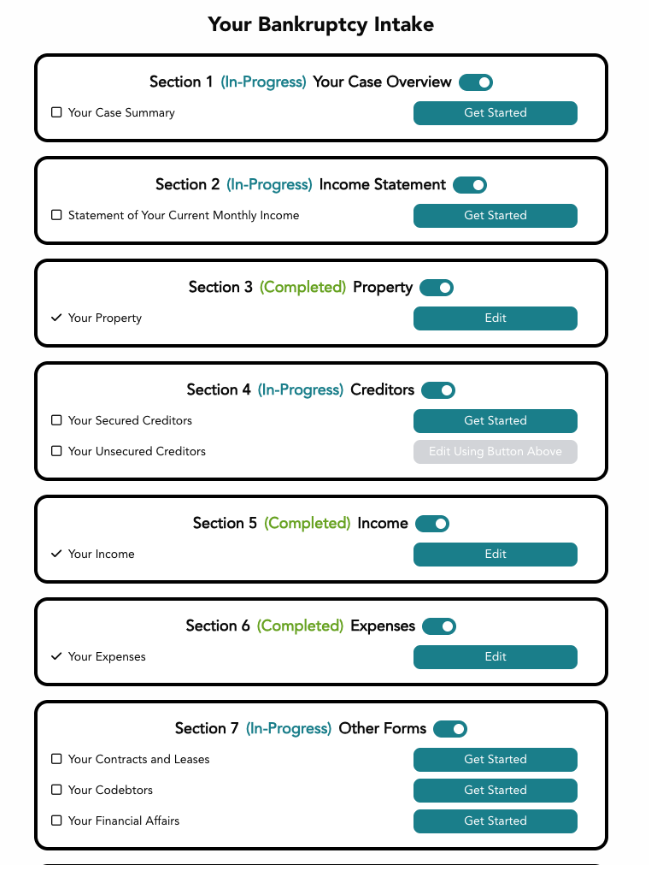
The client’s intake is organized into sections such as Your Case Overview, Property, Creditors, Income, and Expenses. Each section shows its progress and provides a way to get started or edit information already entered.
That structure helps answer a practical question: “What do I still need to do?” A client can see that Property is completed while another section remains in progress. Your staff can use the same structure when explaining the next step.
The questionnaire collects information that corresponds to the filing forms. Examples visible in the form review include first and last name, marital filing status, other names used, business history, and the street address where the client lives.
For your firm, it helps to review the intake before sending the first invitation. Walk through the selected sections, look at the questions your clients will encounter, and decide where staff assistance will be most useful. The section selection should reflect how your office actually gathers information.
Clients can flag an intake question for their attorney when they need help. The flag opens a window where the client selects a reason, writes a message, and sends the question to the attorney.
In the example shown, the reason is “I’m confused.” The message field lets the client explain what they do not understand rather than leaving your team to interpret a blank answer.
Consider a client who is unsure how to answer a marital-status question because of a separation. A flag gives them a place to raise that uncertainty while identifying the specific question involved.
This is useful for the follow-up conversation. Your staff can start with the question and the client’s concern together, without asking the client to remember which screen caused the problem. It also makes asking for help part of completing the questionnaire.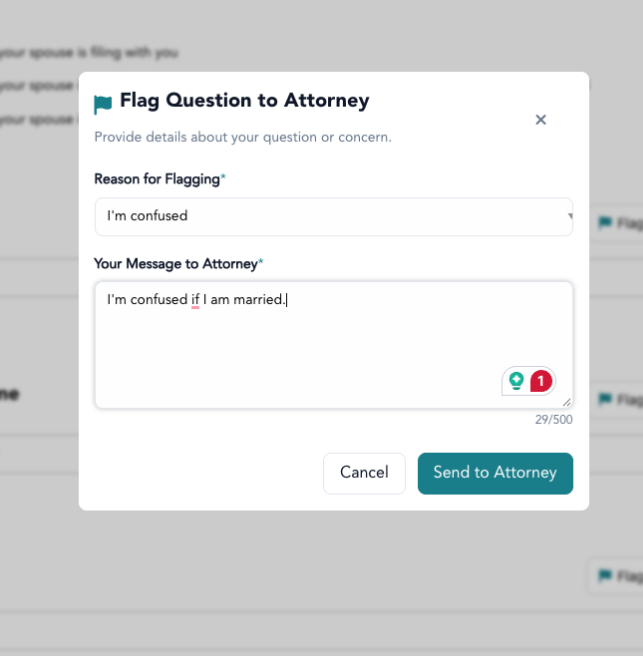
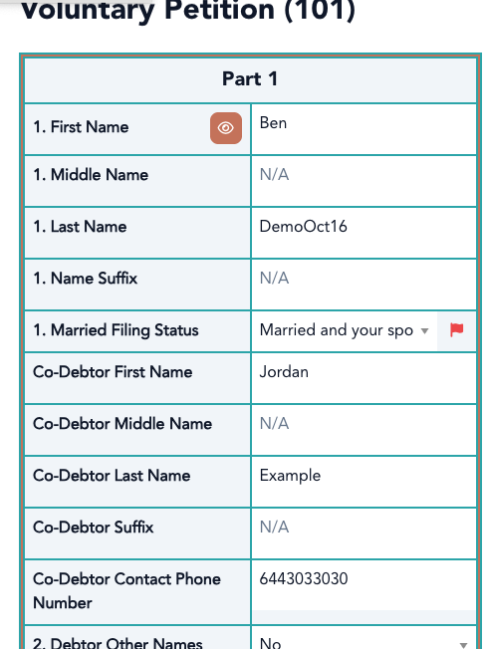
Client intake answers flow into the corresponding bankruptcy form fields. In the Voluntary Petition example, the attorney can see information such as the debtor’s name, marital filing status, and codebtor details inside the form editor.
The client’s flag also appears beside the relevant field. The screenshot shows a red flag next to Married Filing Status, keeping the request for attention connected to the information being reviewed.
That connection makes the review more useful than a list of answers alone. A field may contain a response and still need a conversation. Your team can identify that uncertainty while preparing the form and clarify the answer before relying on it. The attorney remains responsible for reviewing the information used in the filing.
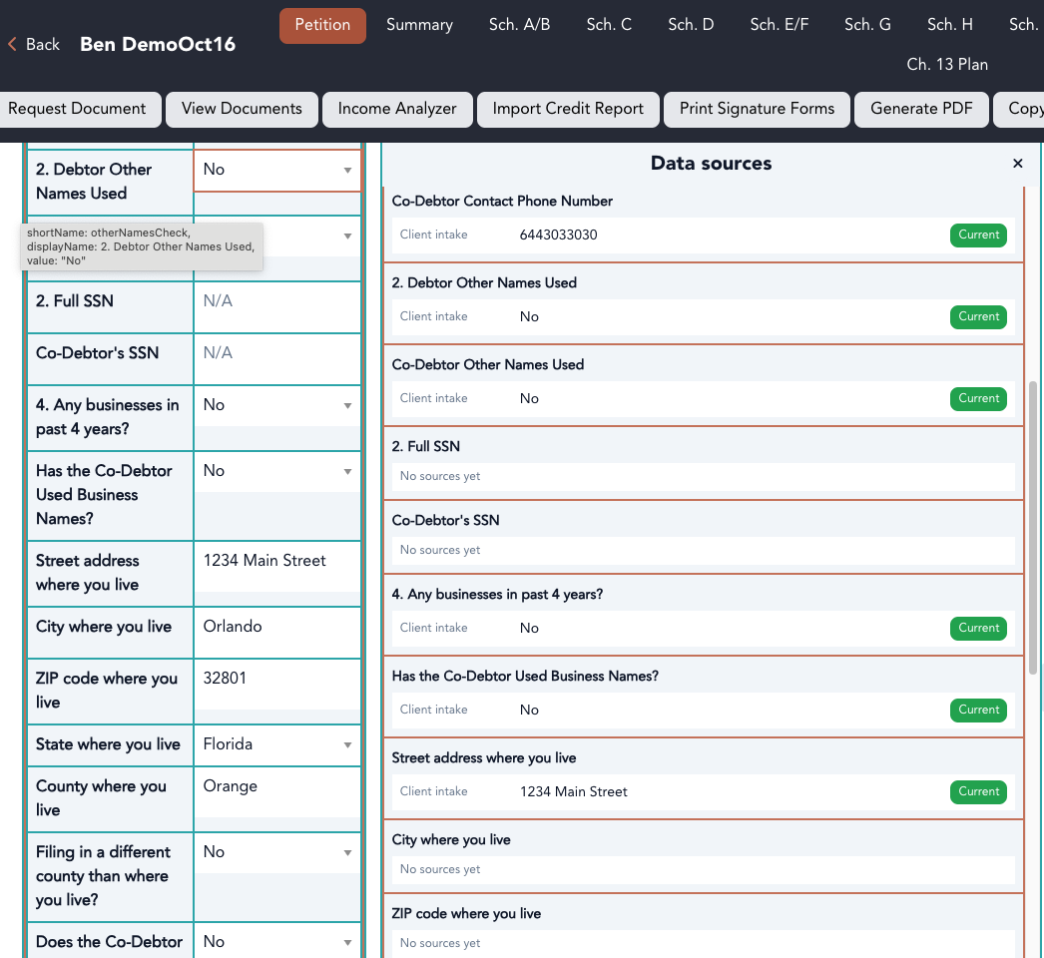
The data sources view helps attorneys see where a form value came from. Open Show Sources to review source information alongside the fields you are working on.
In the example, several entries identify Client intake as the source and display the associated value. A green Current label identifies the value currently in use. Other fields display No sources yet.
For example, the street address field shows an address supplied through client intake. A reviewer can see that connection directly, rather than assuming the address was entered by staff or taken from a document.
Source visibility is especially helpful when information needs checking. It gives the reviewer a starting point for follow-up and helps distinguish a populated field from one with supporting source information available in the panel.
The screenshot demonstrates intake-sourced values. As you review a case, check the sources actually listed for each field rather than assuming every value has the same origin. You can close the panel when you want more room for the forms.
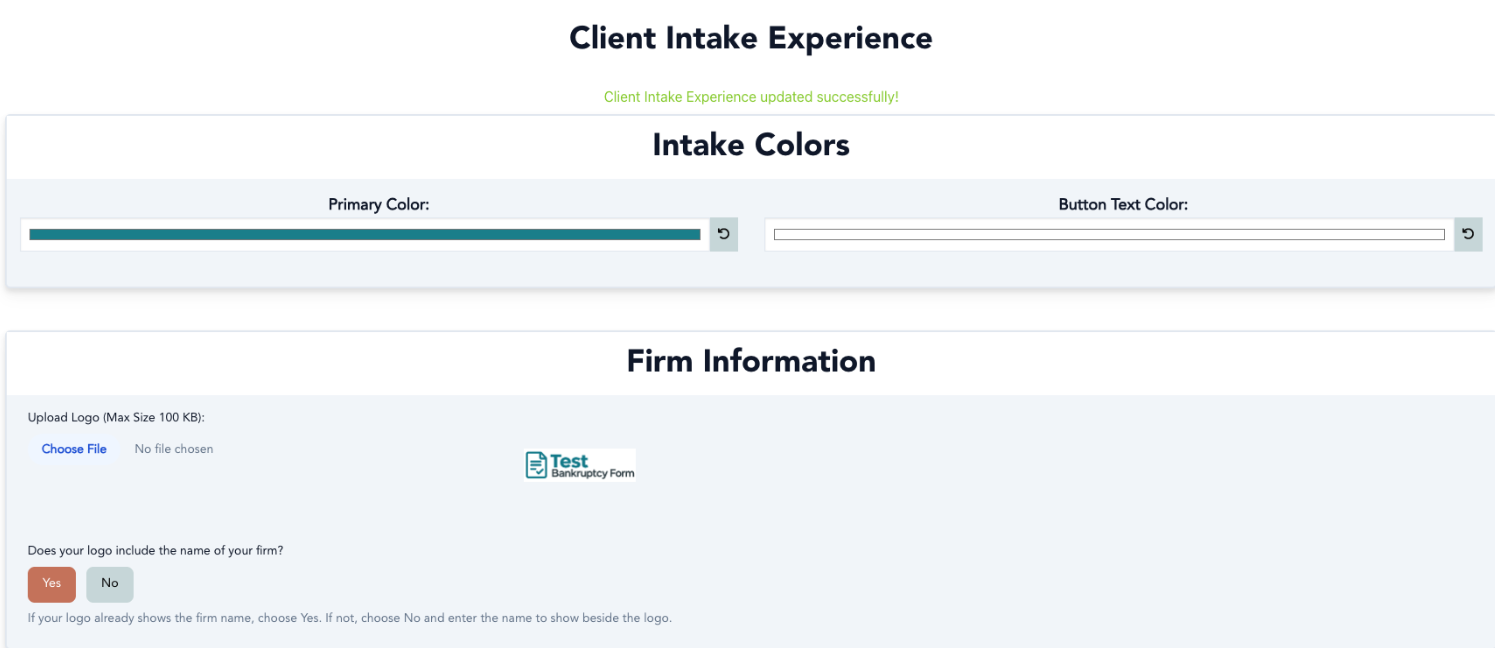
Fresh Start Finance lets you customize the intake’s primary color, button text color, and firm logo. These settings help make the questionnaire feel consistent with the rest of your client experience.
The Firm Information settings also ask whether your logo already includes the firm name. If it does, select Yes. If it does not, select No and enter the name to display beside the logo.
That detail prevents an awkward introduction where the firm name is repeated or missing. The example uses a demonstration logo, but your office can apply its own identity.
Choose colors with readability in mind. Buttons should be easy to recognize, and their text should remain clear against the background. Familiar branding is most useful when clients can comfortably navigate the intake.
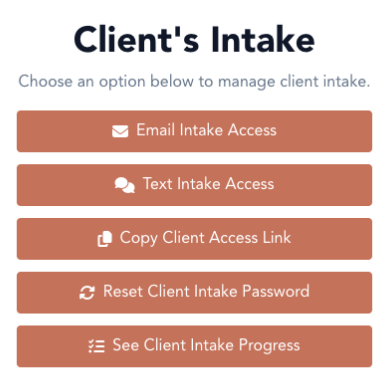
From the Client’s Intake menu, your team can email intake access, text intake access, or copy the client access link. The same menu includes options to reset the client’s intake password and see intake progress.
These choices let staff support the client through the communication channel that fits the conversation. During a phone call, sending a text may be convenient. For a client expecting an email, your team can send access that way.
Progress visibility also makes follow-up more specific. Instead of asking whether the client has finished everything, staff can review progress and discuss the sections that still need attention.
Start by deciding what clients should complete independently and what your staff should handle with them. Select the intake sections accordingly, then apply your logo and colors.
Next, have someone on your team complete a test intake. Enter sample answers, flag a question, and review the corresponding bankruptcy form. Open the data sources panel to see how the intake information is identified.
Finally, agree on who checks progress and who follows up on flagged questions. A flag is most useful when someone in the office knows to review it.
This setup gives your team a shared process for collecting information and resolving uncertainty. To explore how it would work in your office, ask for a Fresh Start Finance demonstration using the intake sections your firm expects clients to complete.
Yes. The Client Intake Forms settings let firms select available sections, including property, creditors, income, expenses, other forms, and document upload.
Clients can flag an intake question and send a message to their attorney. A flag appears beside the corresponding field in the form editor.
Yes. The data sources panel can identify Client intake as a source, show its value, and mark the current value.